
It’s a long weekend and you’re happy because you’ll get to spend the next three days with your family. You left the hostel in an excited mood but as you approached near home, you suddenly realized that you forgot to shut down the laptop .
It’s a sinking feeling because there’re so many confidential documents on the laptop and since most of your trusted friends have also left for the day, there’s no point calling them for help.
So what do you do? Drive back to hostel? Well that’s not required – just take out your cell phone or switch on another laptop or PC at home, send an email (or an SMS or a tweet) and that will instantly lock your laptop. And if you share the same laptop with multiple people, you can use another email command to remotely log off or even shut down the laptop from anywhere in the world.
There’s no magic here, it’s the power of
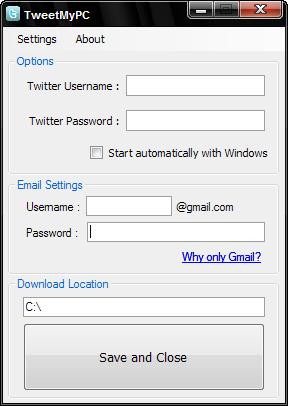
TweetMyPC(https://tweetmypc.en.softonic.com/) utility that lets you remote control your laptop from a mobile phone or any other Internet connected PC or laptop.
It works like this. You first install the free TweetMyPC (https://tweetmypc.en.softonic.com/) utility on any Windows PC or laptop and associate your Twitter account. The app will silently monitor your Twitter stream every minute for any desktop commands and if it finds one, will act upon it immediately. The initial version of TweetMyPC was limited to basic shutdown and restart commands, however the current has a far more robust set of commands, enabling a far more useful way of getting your PC to carry out certain tasks especially when you’re AFK (Away From Keyboard).
Before we get started, it may be a good thing if you can set up a new twitter account for remote controlling your laptop and also protect the status updates of this account to ensure better security.
Protecting the account means that you prevent other users from reading your tweets which in this case are email commands that you sending to the computer. To protect your Twitter profile, log in to Twitter with the credentials you want to use, click Settings and check the box next to “Protect my Updates”.
Let’s get started. Install the TweetMyPC utility of your laptop and associate your Twitter and Gmail account with the application. It will use Twitter to receive remote commands (like shutdown, log-off, etc) from while the email account will be used to send your information (e.g., what process are currently running on your computer).
How to Send Commands to the Remote Computer
Now that your basic configuration is done, it’s time to set up a posting method. You can use email, SMS, web or any of the Twitter clients to send commands to the remote computer.
By Email: Associate you Twitter account with Posterous (auto-post) and all email messages sent to twitter@posterous.com will therefore become commands for the remote computer.
By SMS: If you live in US you can send associate Twitter with your mobile phone and then control your remote computer via SMS Text Messages.
By Web:If you are on vacation but have access to an internet connected laptop, just log into the Twitter website and issue commands (e.g., shutdown or logoff) just as another tweet.
Download Files, Capture Remote Screenshots & more.
While the TweetMyPC is pretty good for shutting down a remote computer, it lets you do some more awesome stuff as well.
For instance, you need to download an unfinished presentation from the laptop so that you can work on it at home. Or you want to download a trial copy of Windows 10 on the laptop while you are at home.
Here’s a partial list of commands that you can use to remote control the PC – they’re case-insensitive and, as discussed above, you can send them to Twitter via email, SMS or the web.
Screenshot : This is one of the most useful command I’ve come across after the shutdown command. Want to know what’s happening within the confines of your laptop when you’re not around? Just tweet screenshot and TweetMyPC will take a screenshot of your desktop and post it to the web.
ShutDown, LogOff, Reboot, Lock : The function of these useful commands is pretty obvious from their names.
Download url : You can download any file from the Internet on to the remote computer using the download command.
GetFile filepath : The Download command was for downloading files from the Internet onto the remote computer. However, if you like to transfer a file from the remote computer to your current computer, use the GetFile command. It takes the full page of the file that you want to download and will send that you as an email attachment. If you don’t know the file page, use the command GetFileList drivename to get a list of file folders on that drive.
GetProcessList : This is like a remote task manager. You’ll get a list of programs that are currently running on the remote computer along with their process IDs. Send another command kill process id to terminate any program that you think is suspicious or not required.
Conclusion:
TweetMyPC is a must-have utility and you never know when you may need it. And if you have been trying to stay away from Twitter all this time, the app gives you a big reason to atleast create one protected account on Twitter.
 Tech Horizon